You have got an agent running. It is doing something that will take a while. You could sit there and watch the cursor blink, or you could go outside.
Remote Control is how you do the second thing without losing the session.
It is a Claude Code feature that connects your local session to a URL. You open that URL on your phone, your tablet, or any browser. The session keeps running on your machine. You just pick it up from wherever you are.
Key Takeaways
- One command gives you a unique URL that lets you continue your Claude Code session from any device
- Your full local environment stays intact — MCP tools, files, APIs, project config, all of it
- Nothing moves to the cloud. Your machine keeps running. Your phone is just a window into it.
- That URL gives full access to your machine. Never share it.
- You can enable it automatically for every session in
/config - Claude can push a notification to your phone when a long task finishes
What It Actually Does
Your laptop is running Claude Code. Agents are working through a task you set up — reading files, calling tools, writing code. You want to go to the café.
With Remote Control, you do not have to stop the session. You type one command, get a URL, open it on your phone, and walk out. The agents keep going. When something finishes or needs a decision from you, Claude sends a push notification. You reply from your phone. The work continues.
The key thing to understand is that nothing moves to Anthropic's servers. The session runs on your machine the entire time. The web and mobile interfaces are just a window into that local process. All your MCP tools, all your files, all your APIs — still available, because they are still on your machine.
How to Start a Remote Control Session
You need Claude Code version 2.1.51 or later. Check yours with claude --version. You also need to be signed in with a claude.ai account (not an API key — Remote Control does not work with API key authentication).
Once that is sorted, there are two ways to start a session depending on where you are:
If you are already inside Claude Code: type /remote-control. This is the most common case — you are mid-session and want to keep going from your phone.
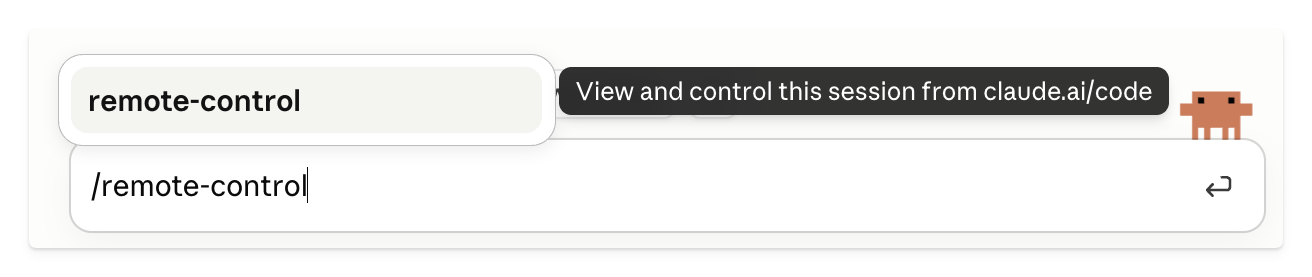
Step 1 — Type /remote-control inside an active Claude Code session.
Claude prints a session URL and a QR code. The URL takes you directly to the session in your browser. The QR code opens it in the Claude mobile app — point your phone camera at it and you are in.

Step 2 — Claude prints a session URL and QR code. Scan it or open the URL on any device.
If you want to start fresh from the terminal: run claude remote-control from your project directory. This starts a server that waits for remote connections. Useful if you want to kick off work without being in an active session first.
If you want it on for every session: run /config inside Claude Code and set Enable Remote Control for all sessions to true. After that, every time you open Claude Code it registers a remote session automatically. You can find it by name in claude.ai/code or the Claude app whenever you need it.
What It Looks Like From Your Phone
In the Claude mobile app, tap Code in the bottom navigation. Your active Remote Control sessions show up there with a green status dot. Tap the session to open it.
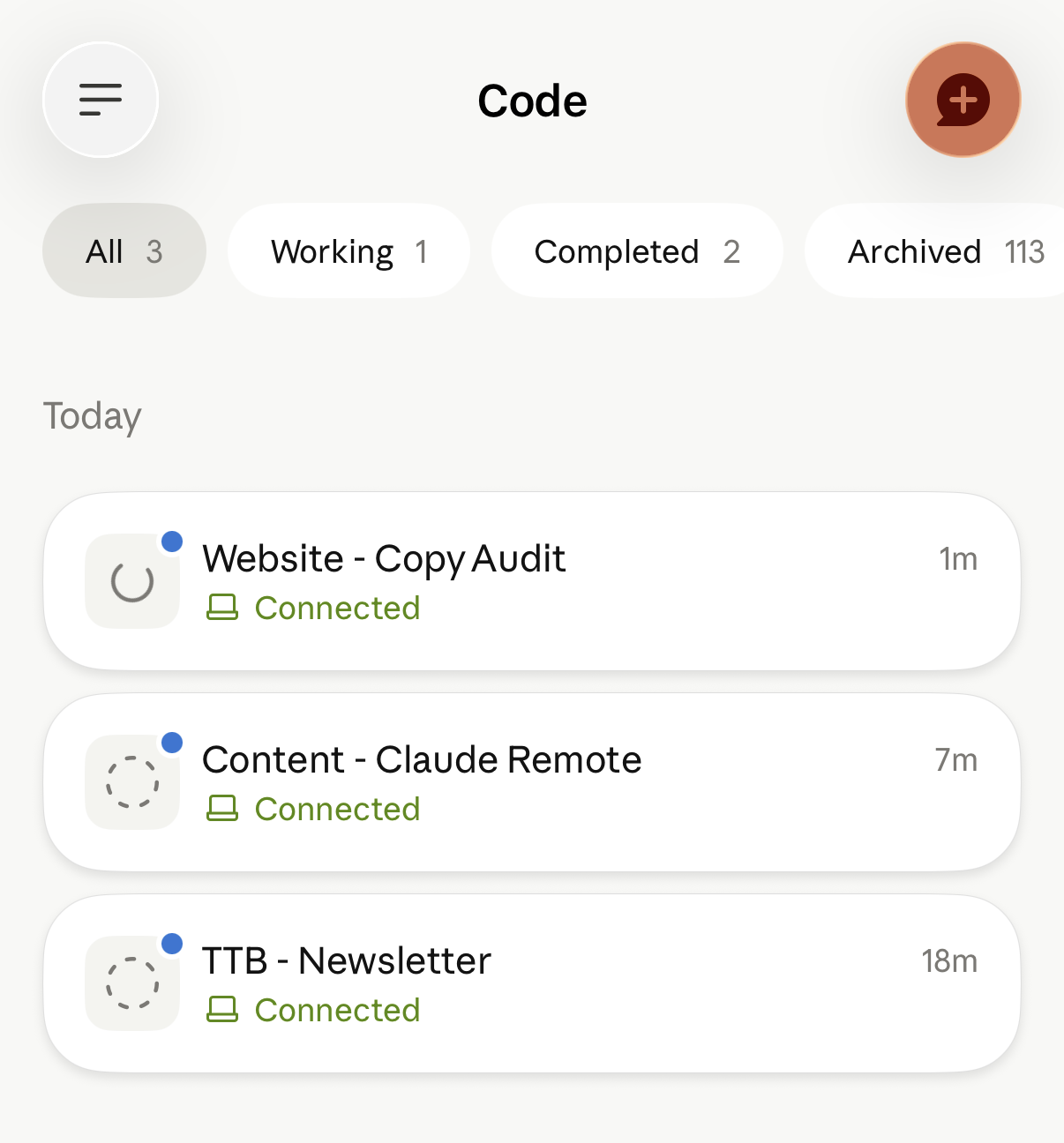
Step 3 — Find your session in the Claude app under Code. Tap to open it.
From here, you are in the same session. You can send prompts, review what Claude is doing, approve tool calls, redirect the work. Anything you can do at your terminal, you can do from your phone — except commands that open interactive terminal pickers like /mcp or /resume, which are local-only.
The conversation stays in sync across all connected devices. You can send a message from your phone, then come back to your terminal and continue there. Both surfaces are live at once.
The URL: One Thing You Have to Know
When you run /remote-control, Claude prints a URL. That URL gives direct access to your machine — your filesystem, your running processes, your connected tools, everything Claude Code has permission to touch.
Treat it like an SSH key. Do not paste it in Slack. Do not put it in a video. Do not share it in a screenshot.
It expires when you end the session, so the window is limited. But while the session is active, that URL is a live line into your computer. Keep it to yourself.
One Thing Worth Knowing
The session runs as a local process. If your terminal closes, or you quit Claude Code, the session ends. The agents stop. Whatever was in progress does not carry over.
If your machine goes to sleep or drops the network briefly, it reconnects automatically when it comes back. That covers most interruptions — power naps, patchy Wi-Fi, switching networks. What it does not cover is actually stopping the process.
So if you are going somewhere for a few hours with agents running: leave the terminal open, keep the lid up (or adjust your energy settings), and let it run. Check in from your phone when you get the notification.