Ever since reading James Clear's best-selling book, Atomic Habits, I can't unsee this quote applying to every aspect of my life.
"You don't rise to the level of your goals; you fall to the level of your systems."
— James Clear
Chances are that you're not creating content because you don't know how to — it's because you don't have a simple and sustainable system to do it.
I know this because that was me years ago.
Creating content based solely on short bursts of motivation or inspiration but unable to continually keep it up, resulting in "start-stop" efforts.
So it wasn't until I created a content dashboard — essentially an "all-in-one" central tracker that houses everything related to my content — that I started seeing consistent results.
And I want the same for you.
By the end of this article, you'll know how to capture, curate and create your content all in one place using a digital content dashboard.
We'll be using Notion, my favourite productivity/note-taking/project tracker/life management tool that's:
- beginner-friendly — there's no learning curve to get started
- customisable — you can tailor it to whatever your needs are
- versatile AF — works across any device with an internet connection
With a bit of time spent tinkering, you can create a powerful content dashboard to suit your content creation workflow while having a simple way of collaborating with others.
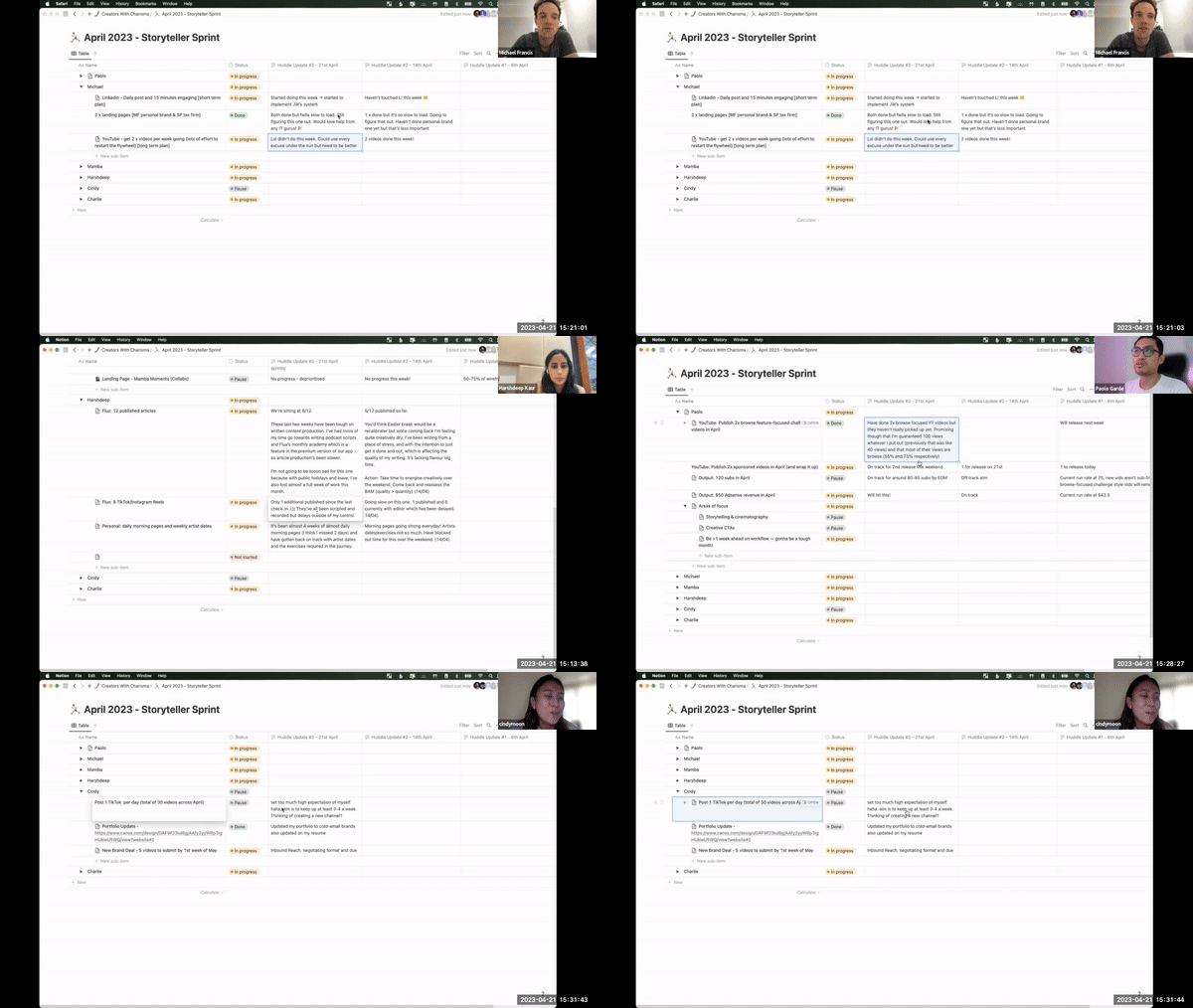
In fact, it's what we've been using to track content progress across projects:
Now let's dive in and start organising your content creation in 3 steps:
- Capture: Immediately capture your ideas so you don't lose them
- Curate: Customise your workflow to suit your content
- Create: 'Templatise' your content to speed up your process
🎁 Bonus: I've also included a link to download my (free) Content Creation Dashboard towards the end of this article, so you can start implementing everything we cover immediately.
1. Capture
You need a process to capture ideas immediately.
Because if you don't capture it in the moment — it's gone forever.
So to make sure you can capture ideas on the fly, we'll set up your Content Tracker using a feature in Notion called a 'Database'.
A Database is basically a collection of related information ("Pages") that can be organised, filtered, and viewed in different ways.
And within your database, you can create "Pages" which we'll use for each piece of content.
To create a Database in Notion (for all of your content)
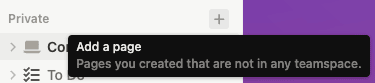
Tap "Add a page" button in the sidebar
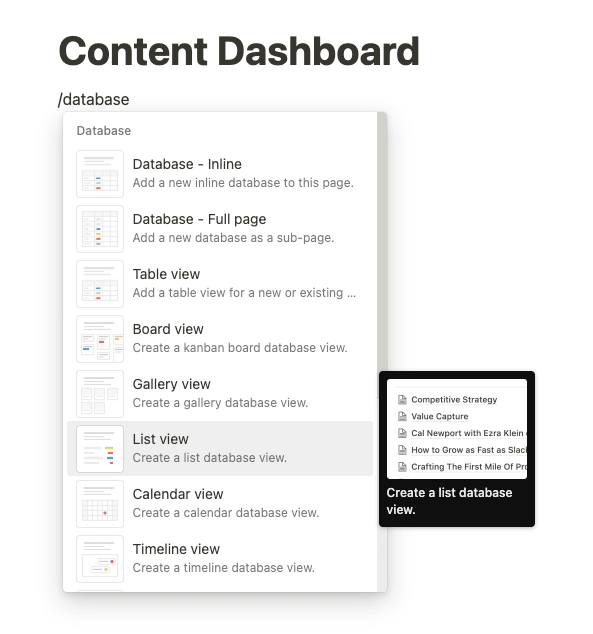
Type "/database" and select the List View
Tap "New database" and give it a name
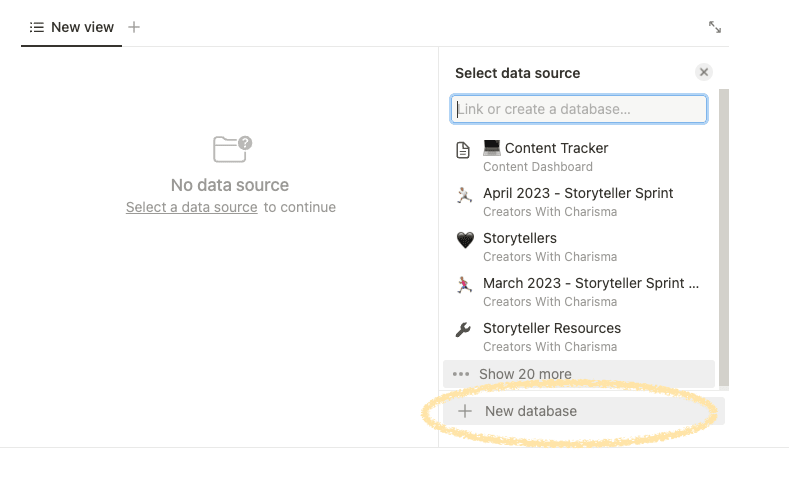
Voila! You've created a database that can hold your content ideas.
To create a Page in Notion (for each piece of content)
Tap "New" button in the top right corner of the database view
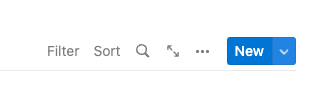
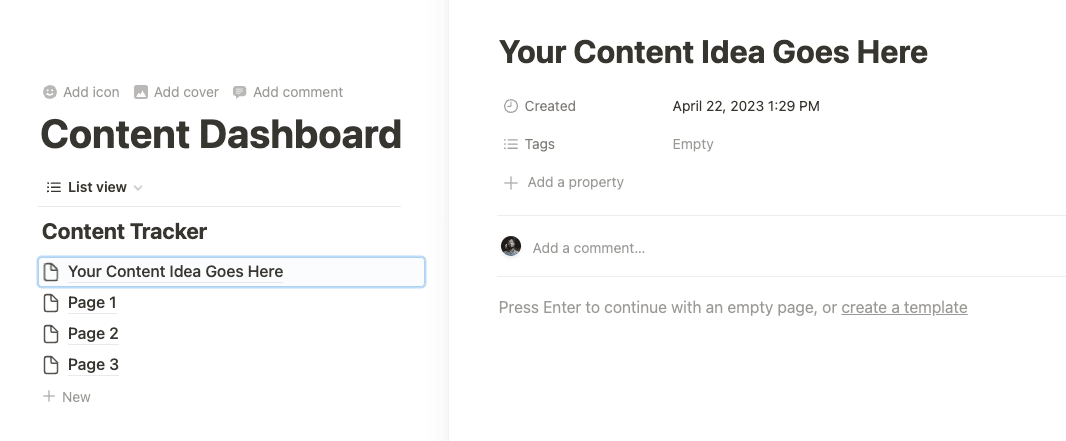
Give your page a name (i.e. Content Idea) a one-line summary, or a few keywords to prompt yourself later, of your content idea.
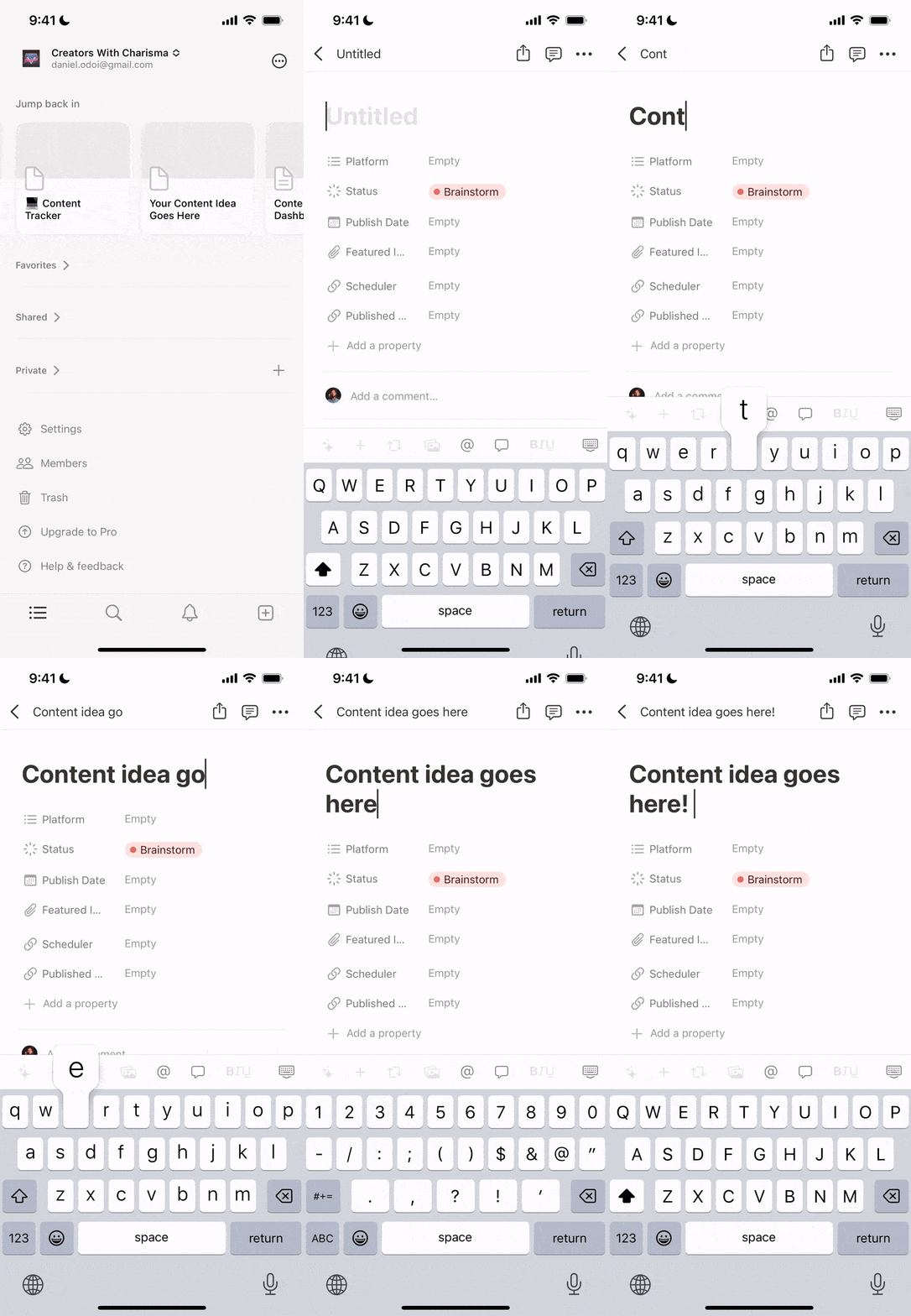
So when you're out'n'about and get hit with an idea, you can access your Notion tracker on your mobile, tap on "New" and braindump your content idea that you can revisit in the future!
2. Curate
Next, we need a process to organise, sort and filter our content.
This can be about their:
- Status — what stage of your workflow is it up to?
- Platform — where are you posting?
- Publish date — when is it planned to go-live; or
- Any relevant information you'd like to be able to sort and search for.
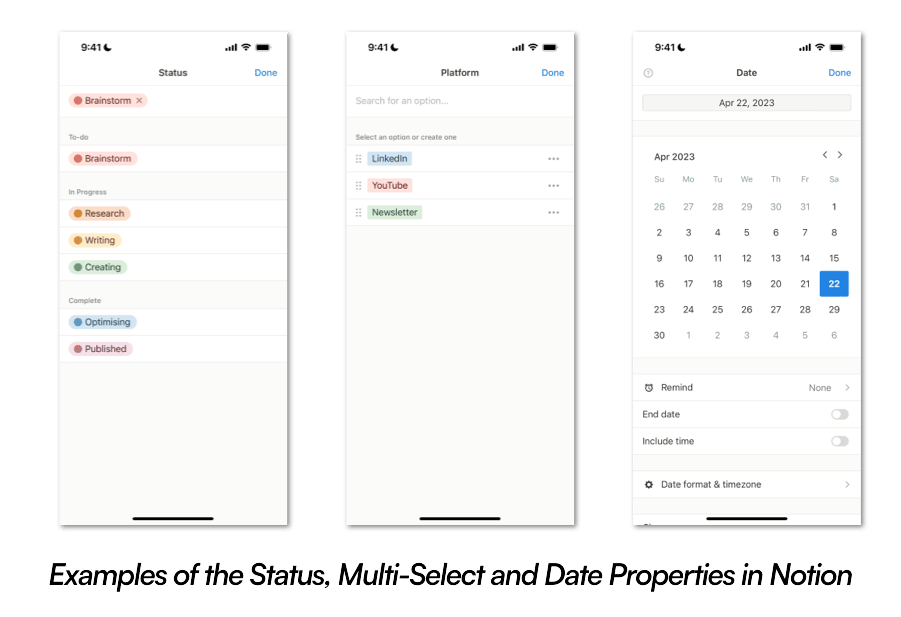
In Notion, these are called "Properties".
You can create various property types in your database, including text, number, select, multi-select, date, checkbox, person, and file.
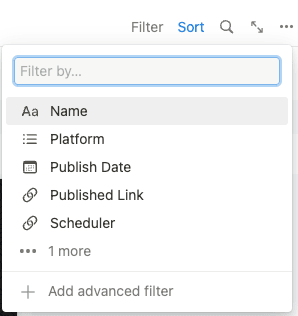
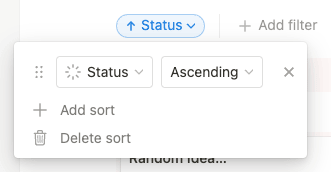
Properties can be filtered, sorted and grouped to help you layout your content in a way that suits your preferences.
These are called "Views" and Notion comes with the full suite of options. The most common in project management is called a "Kanban" board so I'll show you how you can set it up yourself:
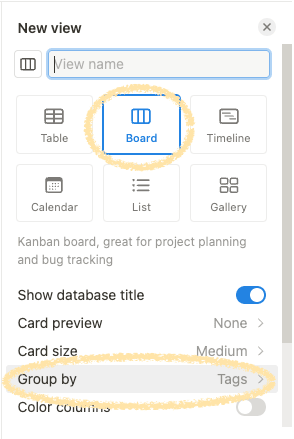
To set up a "Board" View
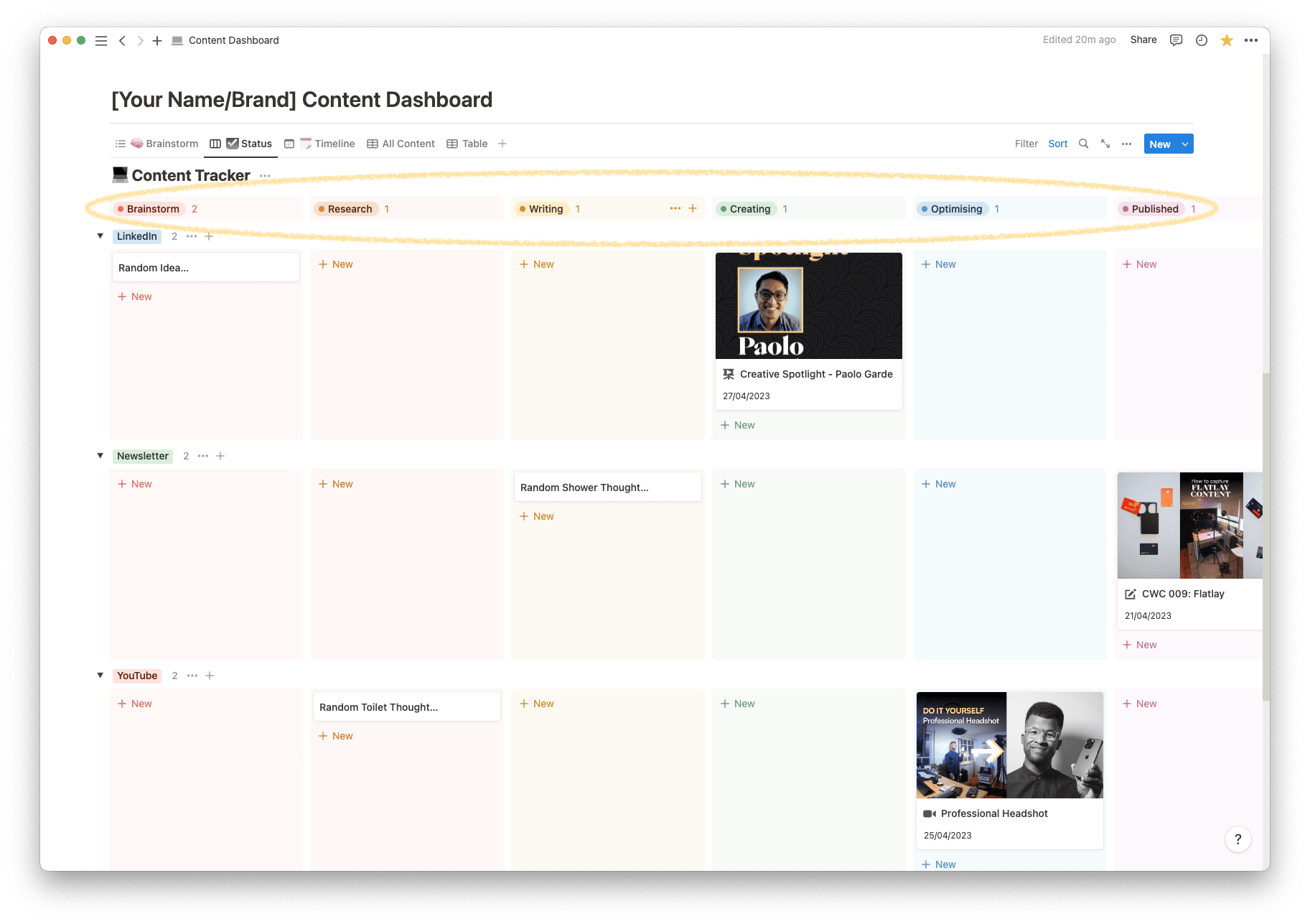
Let's say you're a visual person and want to see each piece of content as cards in different columns (i.e. "Kanban" style).
Tap on the "+" button next to the "List View" tab
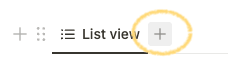
Select "Board" in the sub-menu and under "Group", choose the property you want to group by
Here's an example of a layout you can create for your content, according to its Status
3. Create
Finally, it's time to create.
One of the biggest struggles with content creation is....just getting started.
Often you'll find yourself doing the same tasks to set up each piece of content.
Fortunately, Notion has a powerful feature called "Templates".
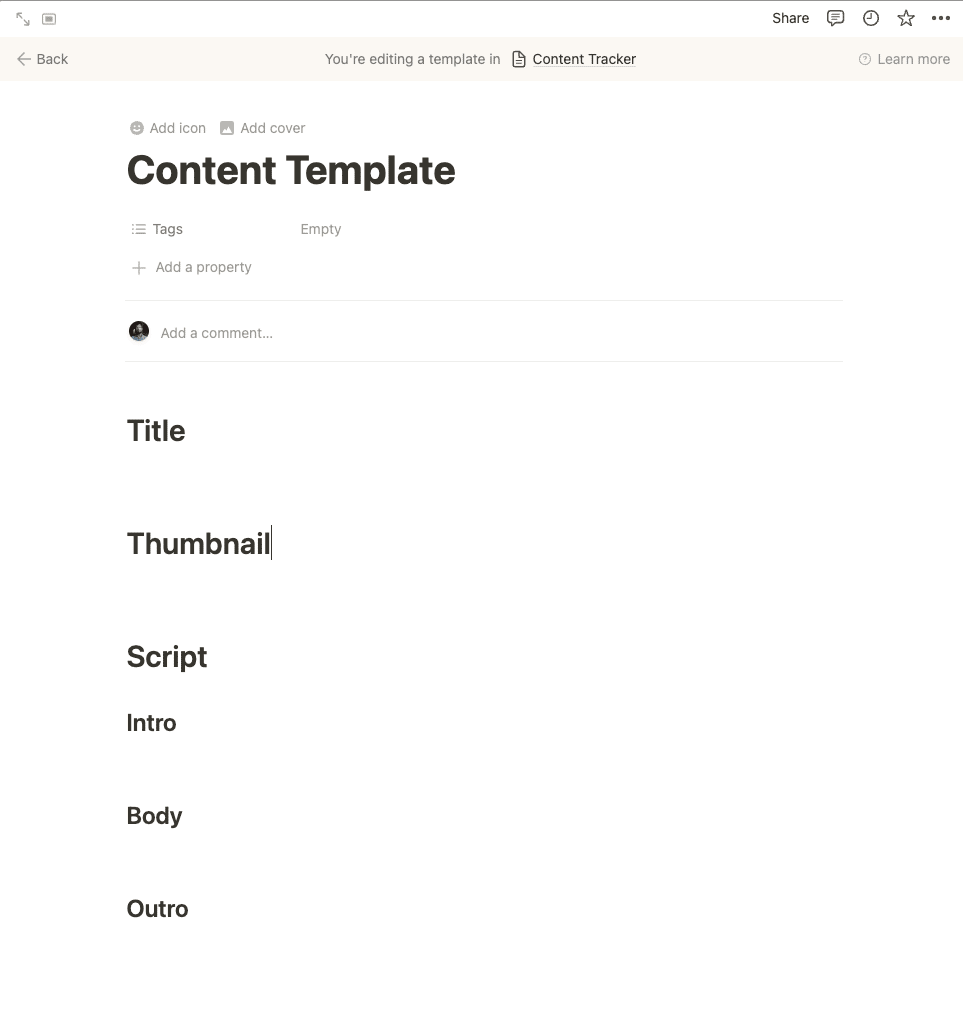
These save you time by allowing you to quickly create new pages with pre-defined structures and layouts that can be customised to fit your content workflow.
This can be especially useful if you regularly make similar types of content so that you can quickly get writing!
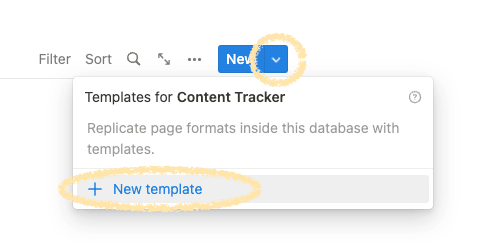
To set up a template in Notion
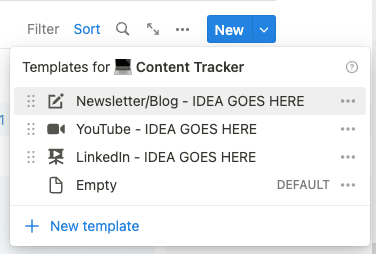
Tap on the dropdown arrow next to "New" and then tap on "New Template"
Create a template with the structure and content you want to use as your template.
And that's it!
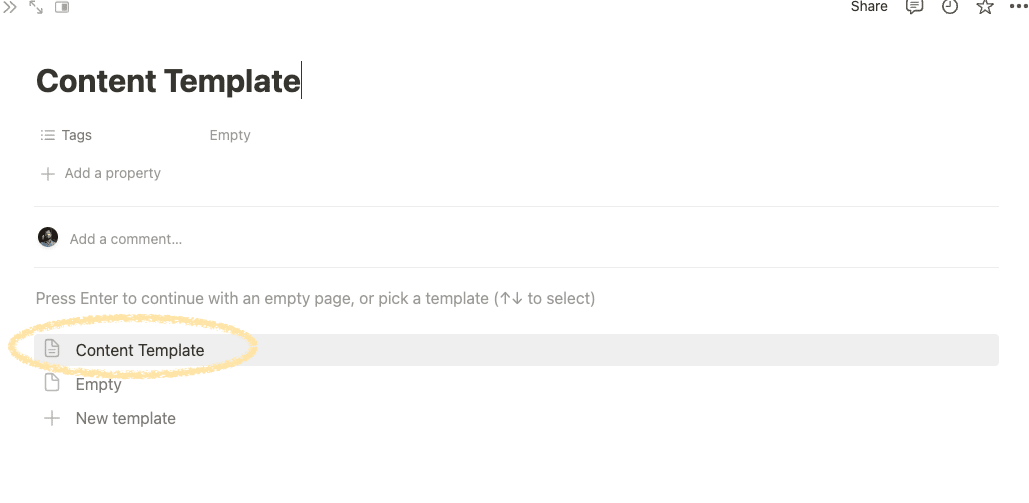
To use a template
You'll see the option to select it whenever you create a page.
When you select it, Notion will create a new page with the same structure and content as your template, ready for you to create with.
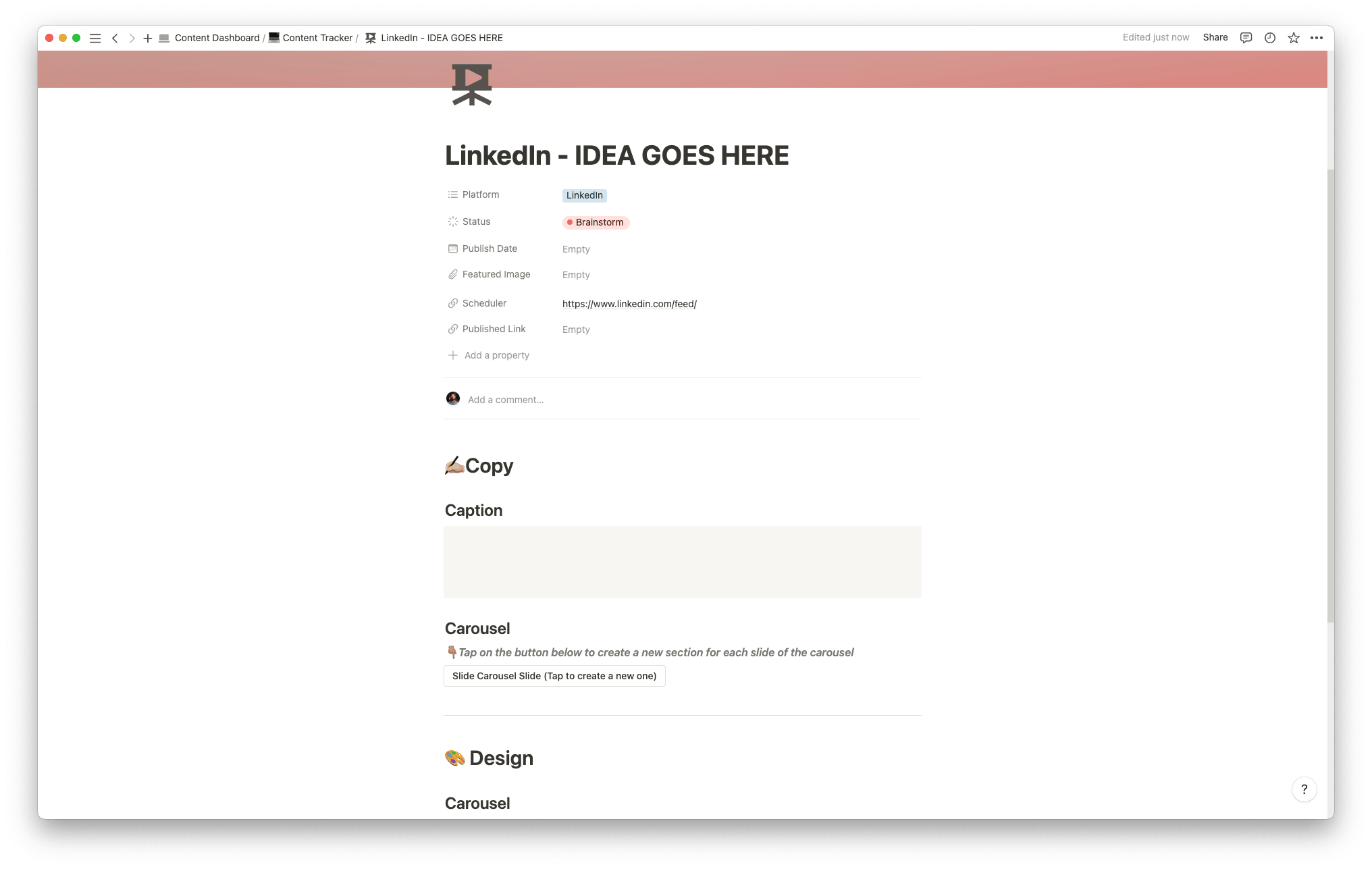
Here are a few examples of Notion templates I've created for my content:
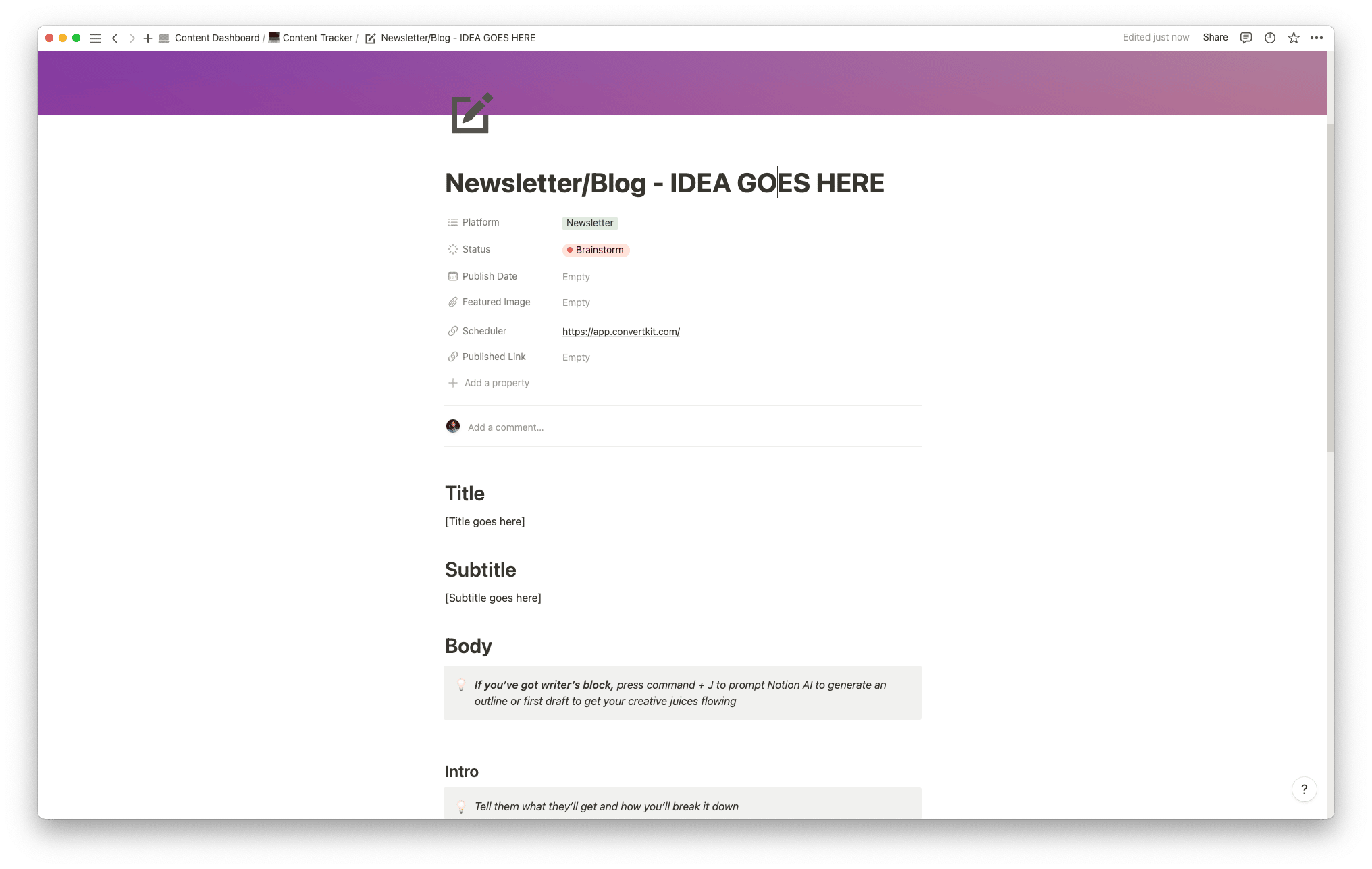
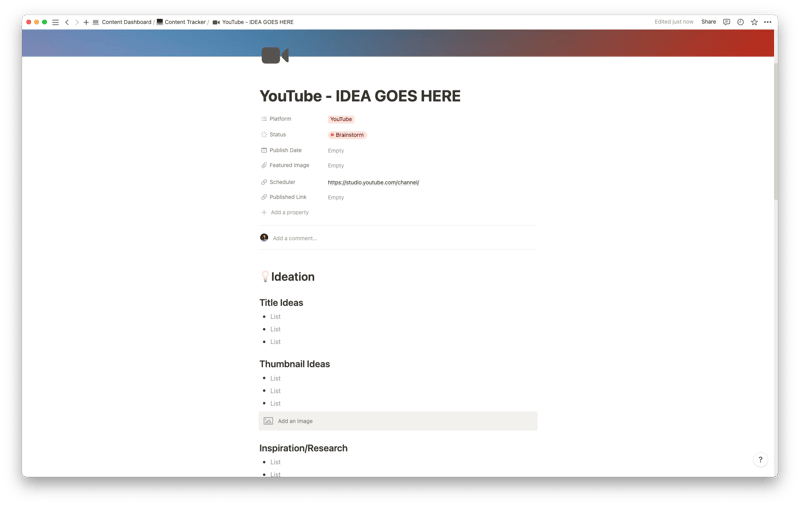
...feeling a little overwhelmed?
I got you.
I know it can feel like a lot to take in, especially if you're unfamiliar with Notion.
So that's why I've built you a Free Content Creation Dashboard to shortcut the entire process and get started ASAP.
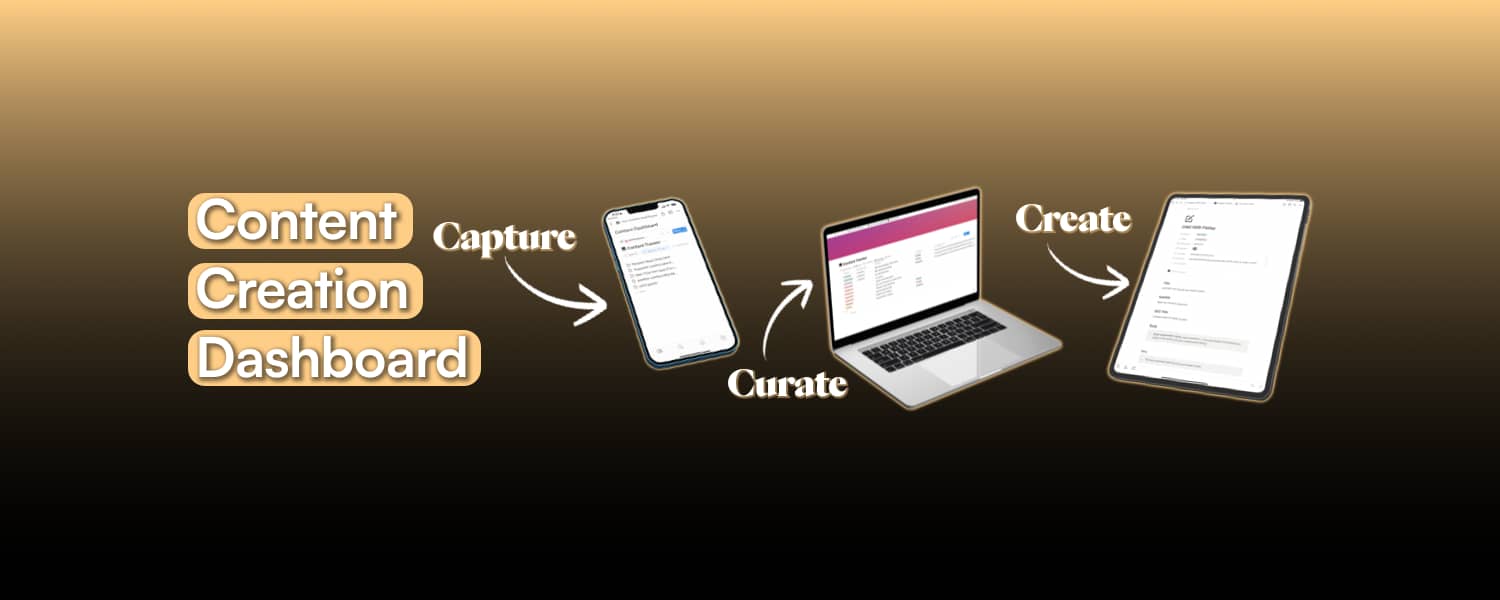
GET THE CONTENT CREATION DASHBOARD
In summary — to organise your content, you need a process to:
- Capture: Snag your ideas as they arise, so you can revisit and refine them later
- Curate: Organise, filter and sort your content ideas in a way that suits your workflow
- Create: 'Templatise' repetitive tasks so you can get started on creating your content ASAP
With a content dashboard in place, you'll have the system to create consistently, without relying on motivation or inspiration to carry you through.
Affiliate Disclaimer: If you click on some of the images/links in this article and make a purchase, I earn a small commission (at no extra cost to you).
Mamba