If you're reading this, I can assume you have several weekly video calls with your colleagues, clients, customers or community. Making an effort to present yourself as punctual, prepared and professional goes a long way towards the perception others have of you, even if your interactions are just virtual.
The truth is - we all judge each other on appearances.
And even if someone doesn't mention it, they're subconsciously making their mind up about you:
- your competence or expertise
- the quality of your services; or
- your professionalism
Of course - I'm not suggesting this is solely a game of smoke and mirrors (i.e. manipulating perceptions or being deceitful).
Firstly - be f*cking good at what you do.
Then, amplify that with a powerful, professional visual brand that reinforces your competence or expertise.
And your virtual appearance makes up a big part of that.
So, let's level up your video appearance.
Got an iPhone & Mac? You're all set
Apple has rolled out a free update called 'Continuity Camera', which lets you use your iPhone as a webcam with your Mac.
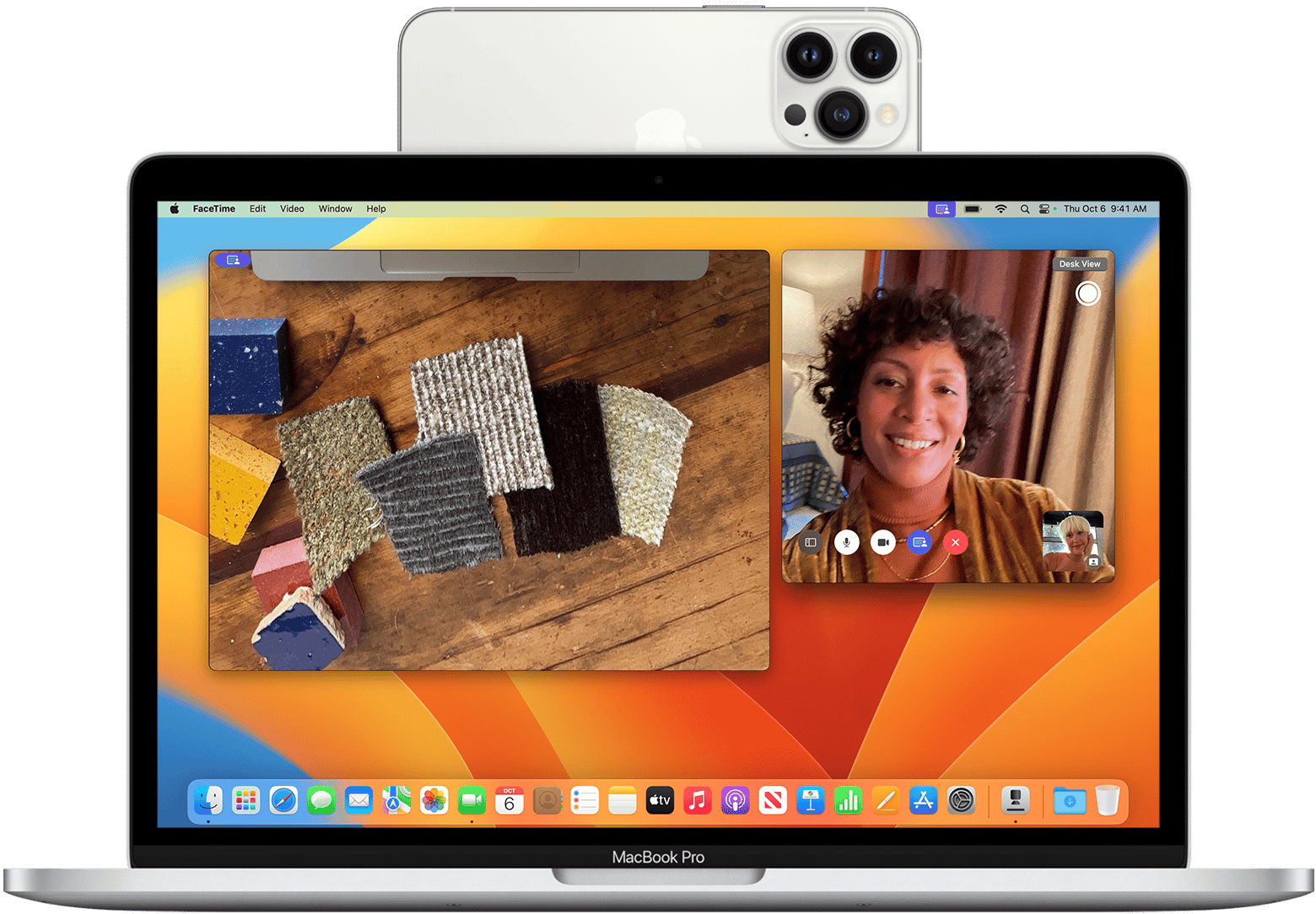
Ever since I started using this feature, I've received lots of compliments on the quality of my "new" webcam and questions related to it:
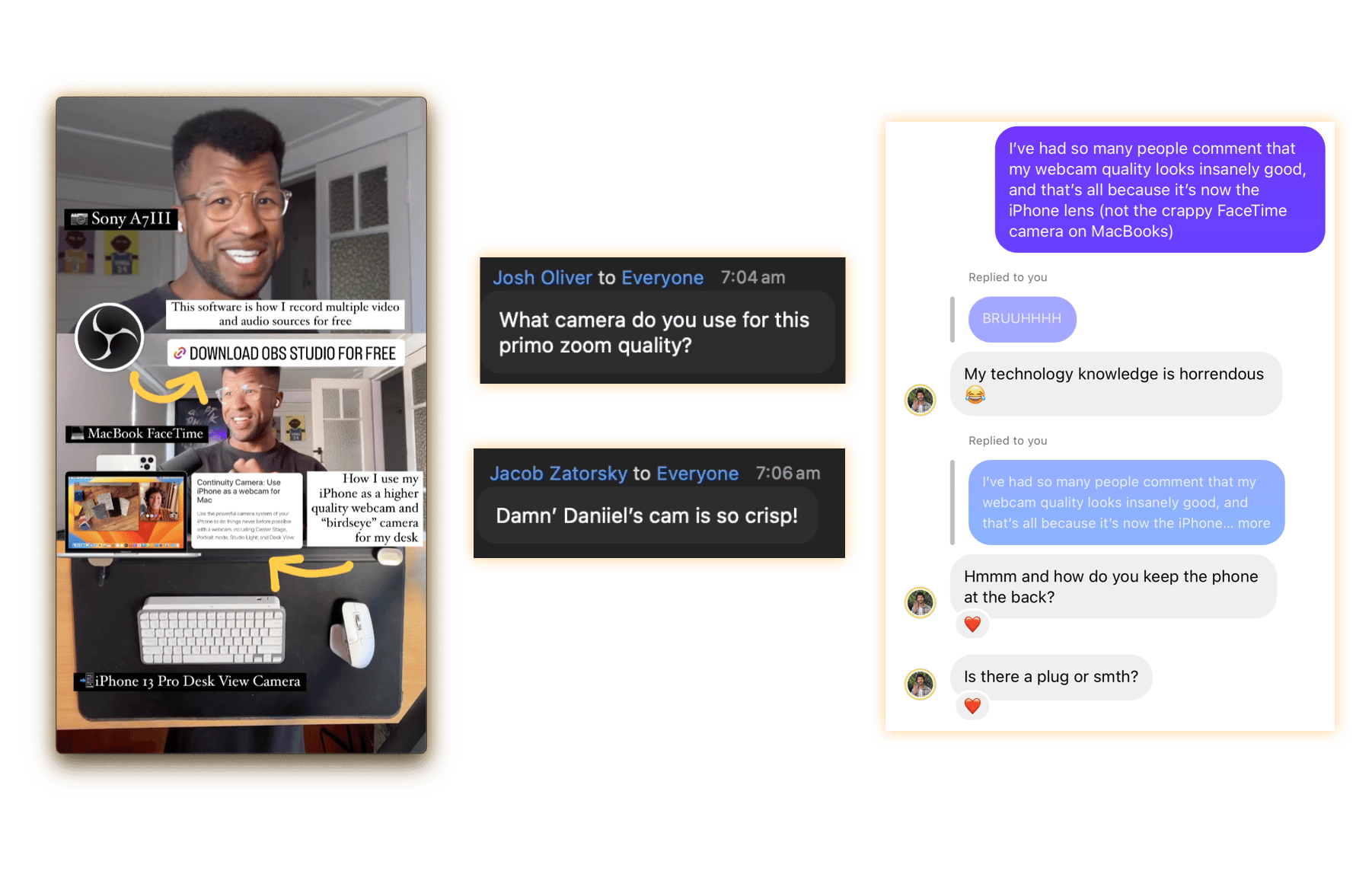
And it makes sense.
It uses one of the most advanced smartphone cameras available to us.
Heck - I don't mind using it in favour of my $3000 professional mirrorless camera (i.e. Sony a7III).
So, to help you level up your webcam quality ASAP, the next section breaks down how:
How To Set It Up
Requirements
- An iPhone model introduced in 2018 or later; and
- A Mac running MacOS Ventura or later
🔗 Head here for more information from Apple
Option 1: Using a MagSafe mount
✅ This is for you if - you're on the go a lot, and want a portable solution to use your iPhone as a webcam
- MagSafe: Confirm that your iPhone model is MagSafe compatible (iPhone 12 onwards. If not, skip to Option 2)
- Mount: Purchase the Belkin iPhone Mount for MagSafe (linked below)
- Attach: Attach it to the back of your iPhone (or case) and then clip it to the top lip of your MacBook.
👀 Here's how I do it
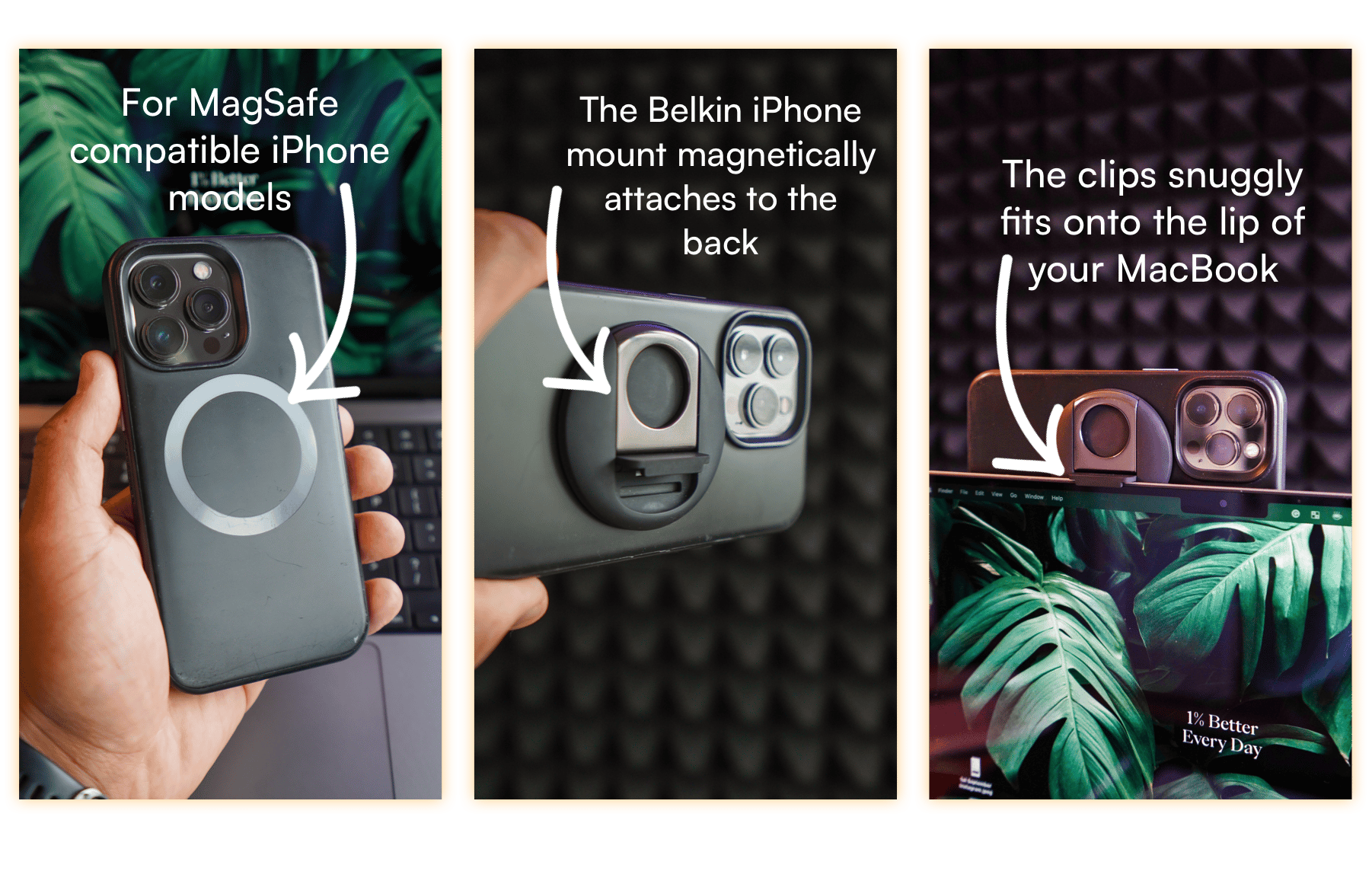
🔗 Link to buy: Belkin iPhone Mount with MagSafe for Mac Notebooks
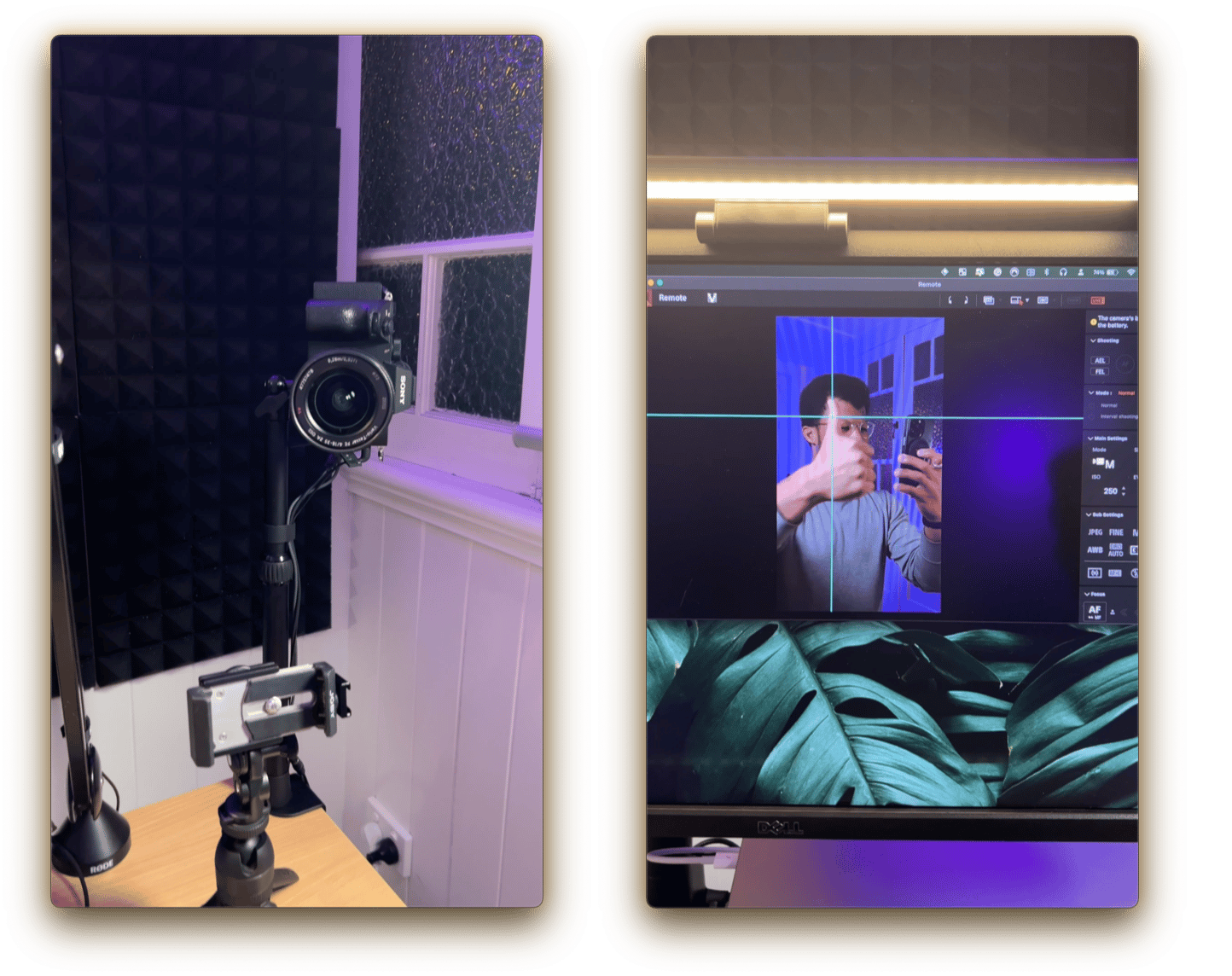
Option 2: Using a tripod and mount/clamp
✅ This is for you if - you already have a tripod set-up in your office/studio that you can place behind your laptop
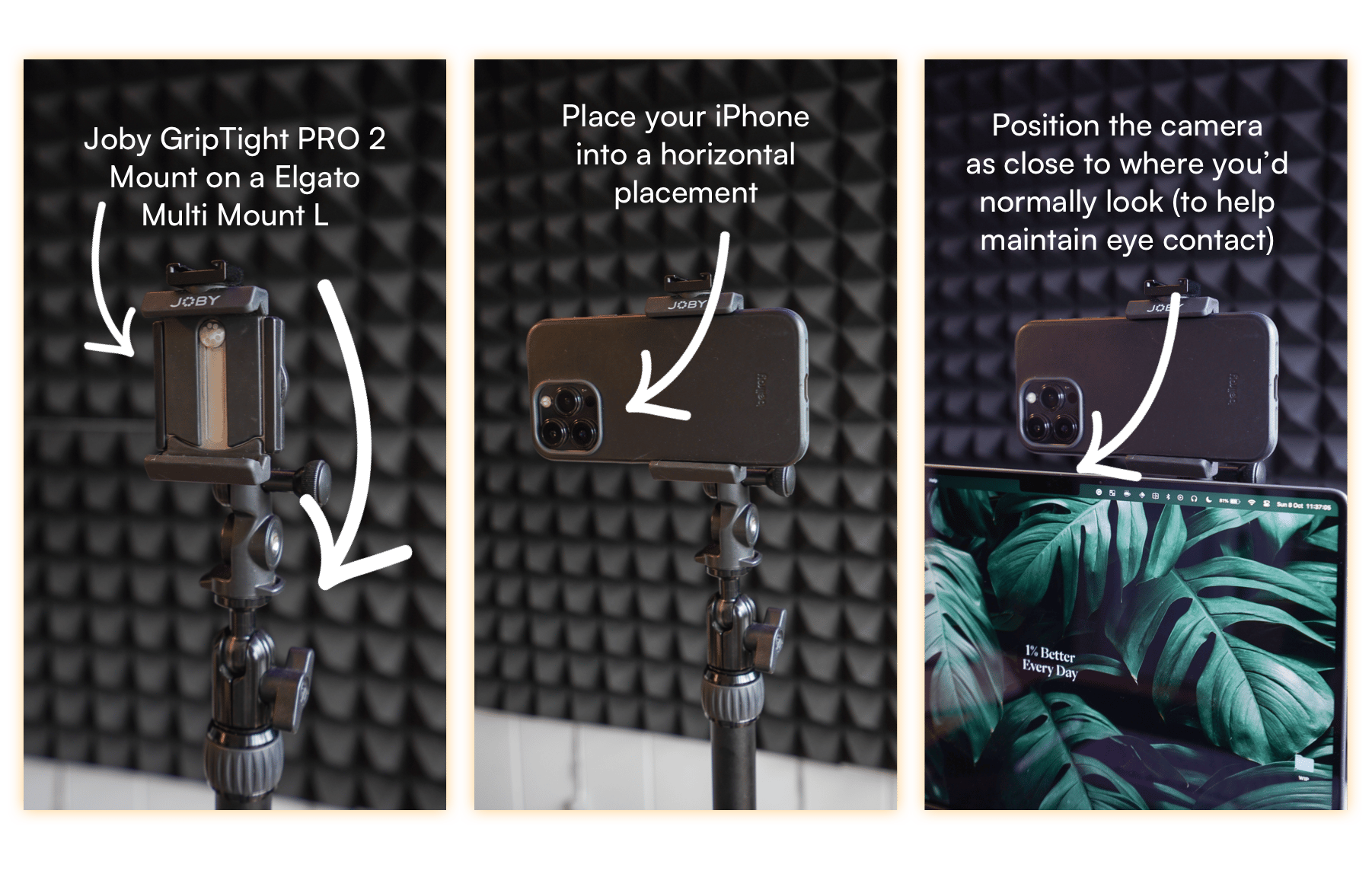
- Set up: Position your tripod & mount/clamp behind where your laptop will be
- Place: Place your iPhone in a horizontal position with the camera just above the lip of your laptop
- Adjust: If necessary, nudge or reposition the smartphone to ensure you'll have near-perfect eye-contact while on a video call
👀 Here's how I do it
And that's it!
If you have any questions at all about getting started with either set-up, hit 'Reply' to this email, letting me know what you're stuck with, and I'll get back to you with your next best steps.
So, in summary
- People judge you on your appearance - Even if it's virtual, it counts.
- 'Continuity Camera' is a free feature for Apple users - Use it - it's a huge upgrade from the quality of your FaceTime camera.
- You can set it up in 2 ways - (1) A Belkin MagSafe Mount; or (2) A tripod and mount/clamp behind your laptop
Mamba